In the left hand Navigation bar select Accounting > Check Management.
NOTE: If your company is utilizing EZ Loader's Quickbooks Integration, this integration can pull Carrier payments and Customer payment receipts into a Load profile automatically. If this feature is activated within your Quickbooks integration, the Check Management section should not be used.
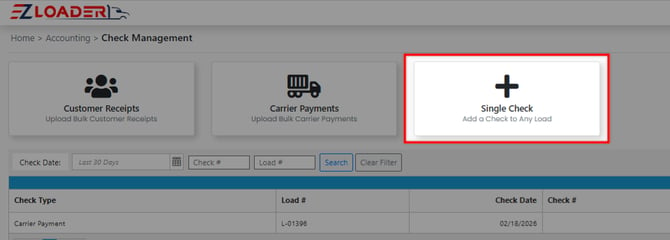
Single Check Entries
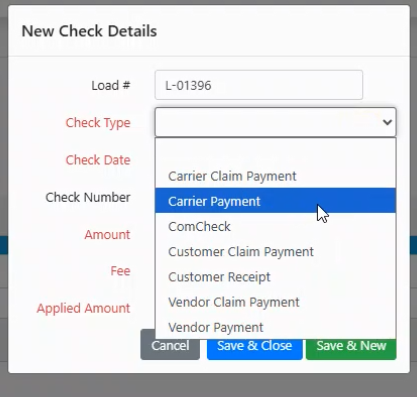
The single check entry window allows you to select a desired load profile and enter any type of payment entry. Select "save and close" or "save and new" to continue to enter multiple different entries.
Bulk Check Entries
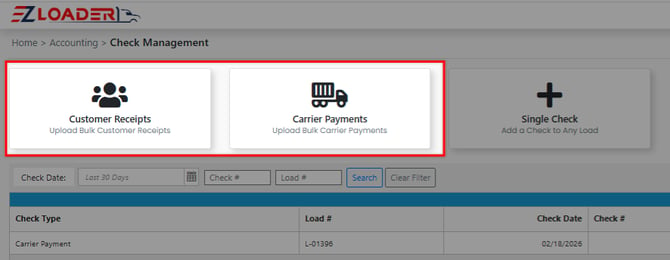
Selecting one of the options above provides a set of instructions to download the template and process your payment information.
**NOTE** - The same Excel template is used to upload both Customer Receipts and Carrier Payments. Make sure you upload your Customer Receipts Template by clicking the Customer Receipts button and upload your Carrier Payments template by clicking the Carrier Payments button to prevent upload the wrong template.
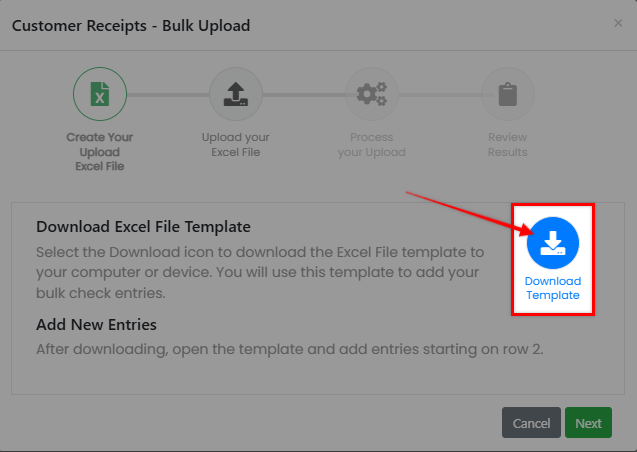
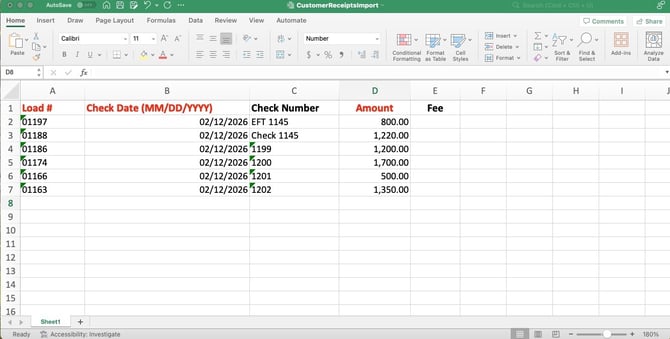
After downloading the template, enter your payment data into the file and upload the completed template. The columns in Red are required.
Column A - Load # - Type in the Load # exactly as it appears within your EZ Load profile
Column B - Check Date (MM/DD/YYYY) - Type in the Date of the "check" (aka Payment) that you made to your Carrier or received from your Customer
Column C - Check Number - This column is optional. Enter any text or numbers here to record for reference
Column D - Amount - Enter the number. No dollar sign is required.
Column E - Fee - This column is optional.
You will then be taken to a data validation grid, where you can review the entries and correct or exclude any errors.
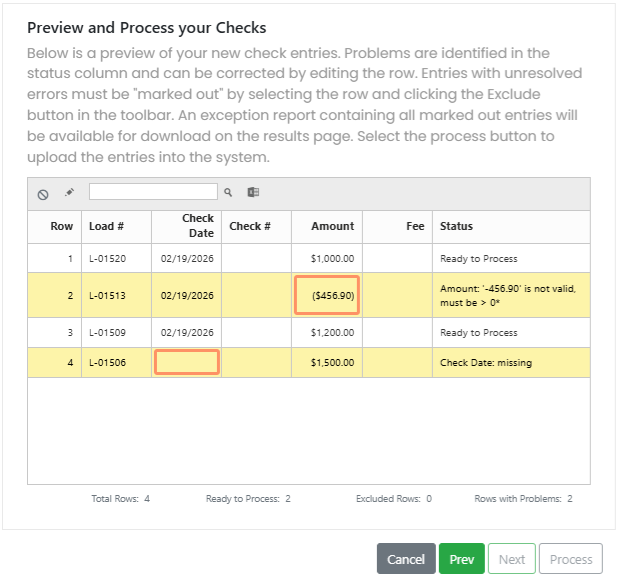
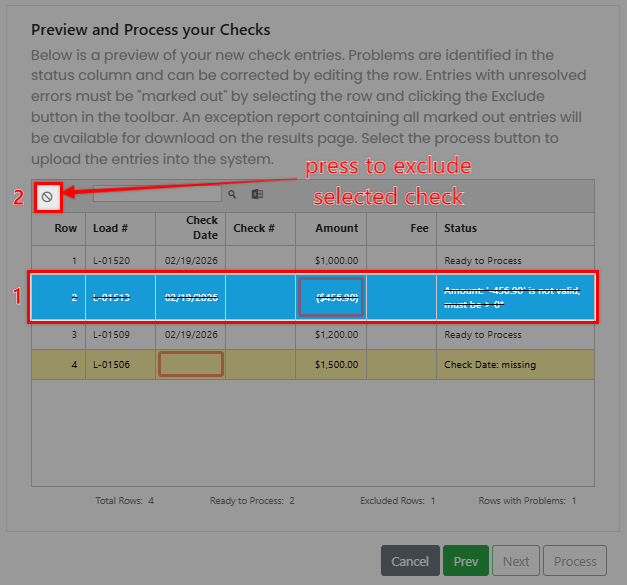
All noted errors must be corrected or excluded from the upload. Once all entries are corrected or excluded, the file can be processed.
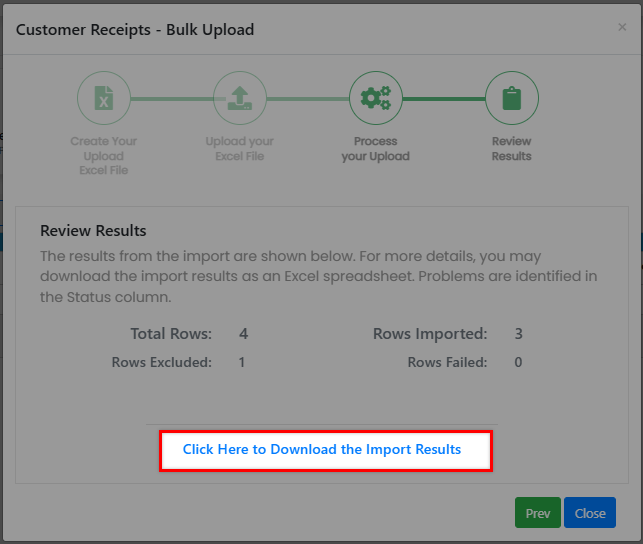
After processing, a results screen will display with details of the upload and the option to download a results report.