
The options within the Invoice Settings and Requirements section of the customer profile allow you to customize aspects of invoicing and set your requirements for the invoice audit process.
Click Here for Details on the Invoice Audit Feature
To edit these settings, navigate to desired customer profile > Accounting section > Invoice Settings and Requirements card.
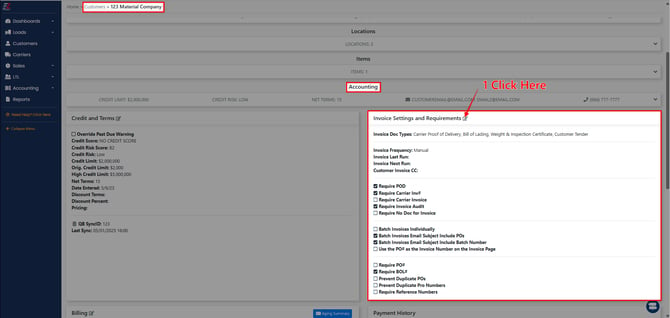

Invoice Settings
Invoice Document Types - If selected from the dropdown, when that document type is uploaded into a customer profile the "include in invoice" checkbox will be selected by default.
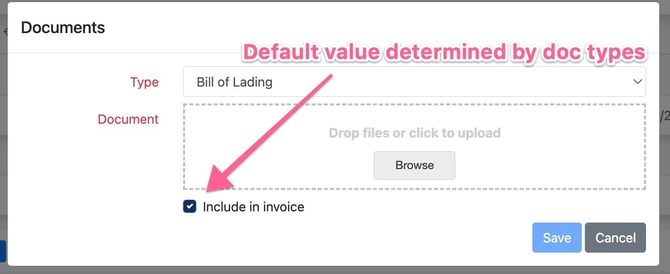
The "Include in invoice" checkbox determines if that document gets included as a supporting document sent along with the invoice to the customer.
Invoice Frequency - When set to manual you will manually trigger the sending of a customer invoice from the invoicing page. When a frequency option is selected any load that is approved for invoicing will automatically be sent to your customer at the designated time. This setting is set to Manual by default.
Customer Invoice CC - Any e-mail address entered here will receive a copy of the Customer Invoice e-mail that is sent to the Customer.
Batch Invoices Individually - When a Customer invoice "batch" is created, each invoice is created Individually, and includes one load per Customer Invoice.
Batch Invoices Email Subject Includes POs - When a Customer invoice "batch" is created and e-mailed to the Customer, the e-mail Subject line will include the Load PO #.
Batch Invoices Email Subject Includes Batch Number - When a Customer invoice "batch" is created containing multiple load Invoices, the e-mail Subject line will include the Batch Invoice #.
Use the PO# as the Invoice Number on the Invoice Page - When a load is on the invoicing page, this setting allows the user to reference that load via PO # instead of Load #.
Requirements
Invoice Requirements determine what missing aspects of a load the system will alert you to when a load goes through the invoice audit page.
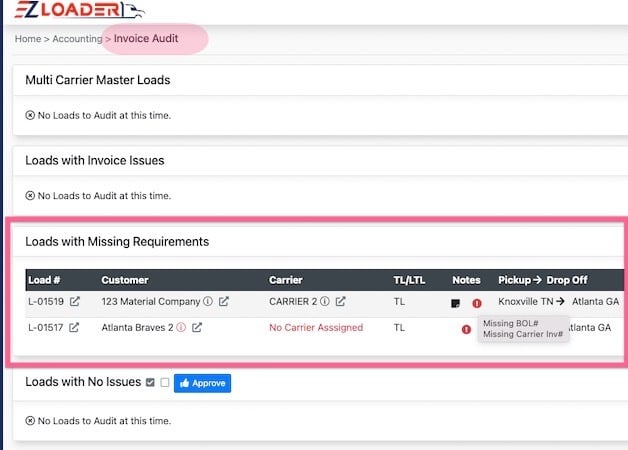
Click Here for Full Overview of Invoice Audit Process
Require POD - When selected a POD document must be uploaded into the load before invoice audit approval.
Require Carrier Inv # - When selected a carrier invoice # must be entered into the load profile before invoice audit approval.
Require Carrier Invoice - When selected a carrier invoice document must be uploaded into the load before invoice audit approval.
Require Invoice Audit - When selected all loads for this customer will flow through the invoice audit page prior to invoicing even if all requirements have been met.
Require No Doc for Invoice - Select this setting only if you do not require any supporting documents to be uploaded into a Load profile before invoicing approval.
Require PO # - When selected a PO # must be entered into the load profile before invoice audit approval.
Require BOL # - When selected a BOL # must be entered into the load profile before invoice audit approval.
Prevent Duplicate Pro Numbers - When selected user will be alerted when entering a Pro # if it already exists on another load record.
Require Reference Number - When selected a Reference # must be entered into the load profile before invoice audit approval.